External LLVM for TriCore™ applications
Please ensure that you make all the necessary changes to the project before running it. Running the project without implementing all the changes can result in a corrupt build and may require starting the entire project from scratch. To avoid any issues, thoroughly review and implement all the proposed modifications before proceeding with the execution of the project. Please pay special attention to the C/C++ Indexer, see further down for more information.
Import existing project
To test if the LLVM HighTec compiler works correctly, let’s import one of the existing Infineon projects.
Select File → Import → Infineon → AURIX™ Development Studio Project and click Next.
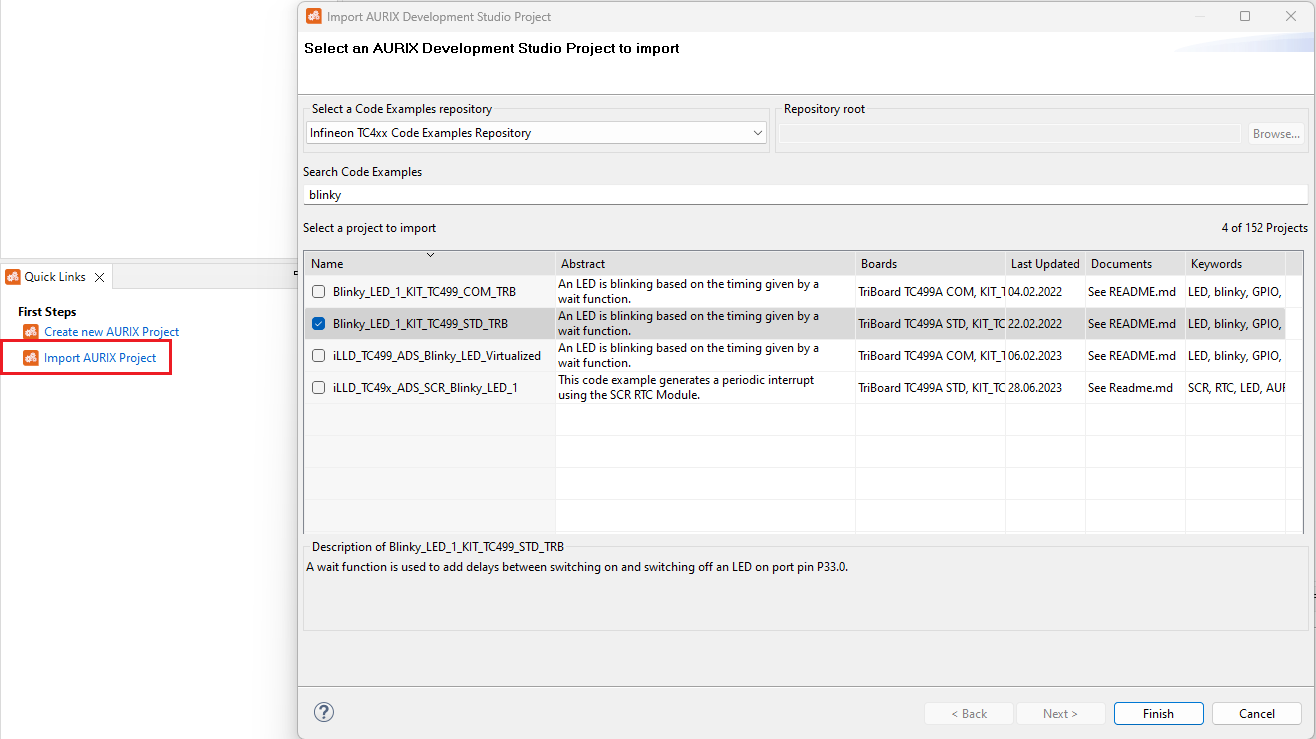
Then select Infineon TC4xx Code Examples Repository, select an example of your choice (we will test the blinky example for STD Kit TC499) and click Finish.
Update iLLD
Update project libraries to the latest version and back up the current.
Right-click on the project, select Project updater → Update iLLD and click Finish.
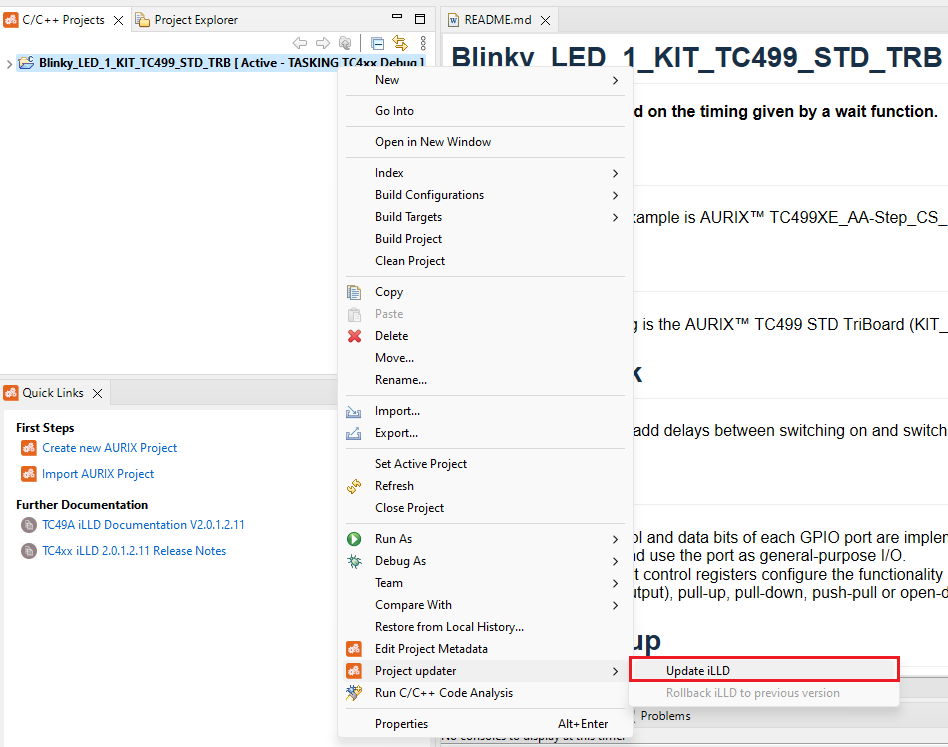
If updating the iLLD removes the driver directories from the Libraries folder, that iLLD version no longer supports your target hardware. To resolve this, "Rollback" to the previous working iLLD version.
|
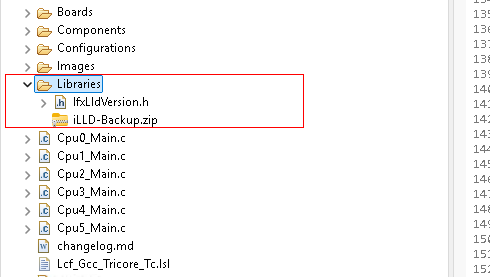
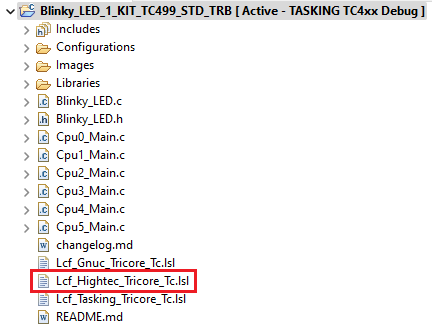
The latest version of the iLLD will also generate the correct linker script.
When the iLLD is updated, ADS executes the C/C++ Indexer. It needs to be finished before starting the build. Otherwise, there is a significant risk of the build failing.

Manage build configuration
To create a new HighTec LLVM toolchain configuration, right-click on the project and select Build Configuration → Manage.
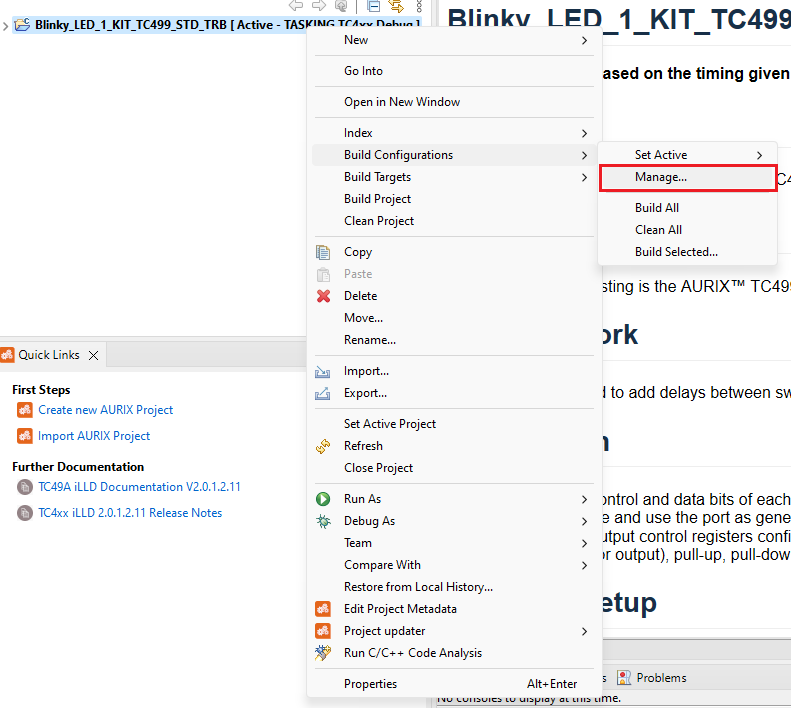
The Manage Configurations tab will be opened.
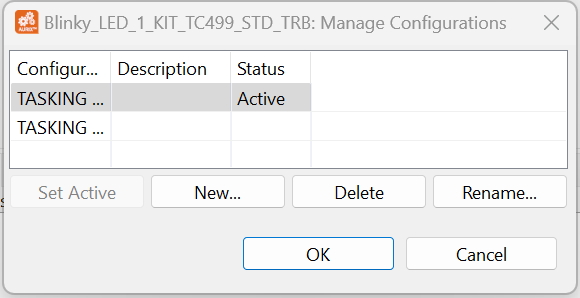
Select New and give a name to the new configuration. Then select Import predefined, choose TriCore Application → External LLVM → Debug and click OK.
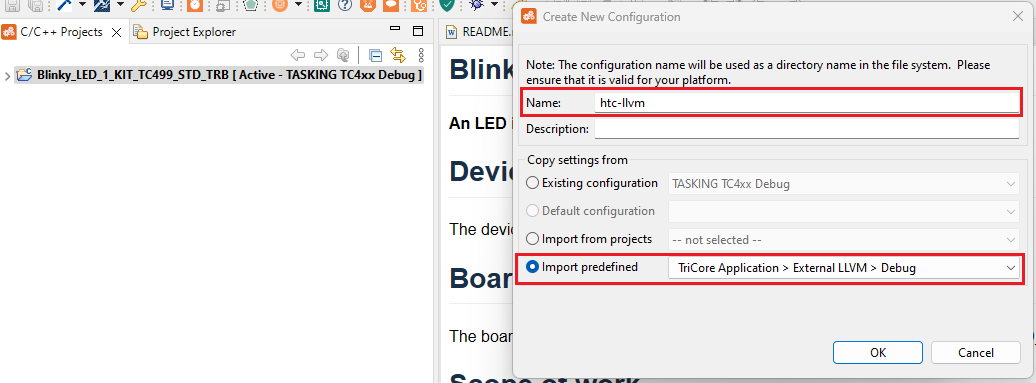
Using a configuration name without spaces is recommended because AurixFlasher does not work reliably if there are spaces in the path to an elf file.
Activate build configuration
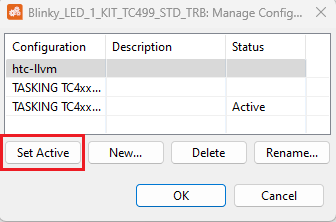
To select a new active configuration, right-click on the project and select Build Configuration → Set Active → HighTec (name of the new configuration created).
Import linker script
After the iLLD update, the project linker script is replaced by a default one for the iLLD base project. If the linker script is not present after creating a new configuration, it is possible to get it from the latest version of the iLLD package and manually copy it into the project:
| Target | Latest iLLD |
|---|---|
|
|
|
|
Infineon Low-Level Drivers are available upon request from Infineon and contain a standardized linker script for LLVM toolchains.
Build settings
The build settings must be updated for the active build configuration. To access the settings, right-click on the project and select Properties → C/C++ Build → Settings.
Apply toolchain
Under the Tool Settings → Settings tab, change the Prefix and Path fields:
-
The Prefix is always "empty" for the
LLVMtoolchain. -
The Path must be set to the "bin" folder of the
LLVMtoolchain.
After the change is done, click Apply and close.
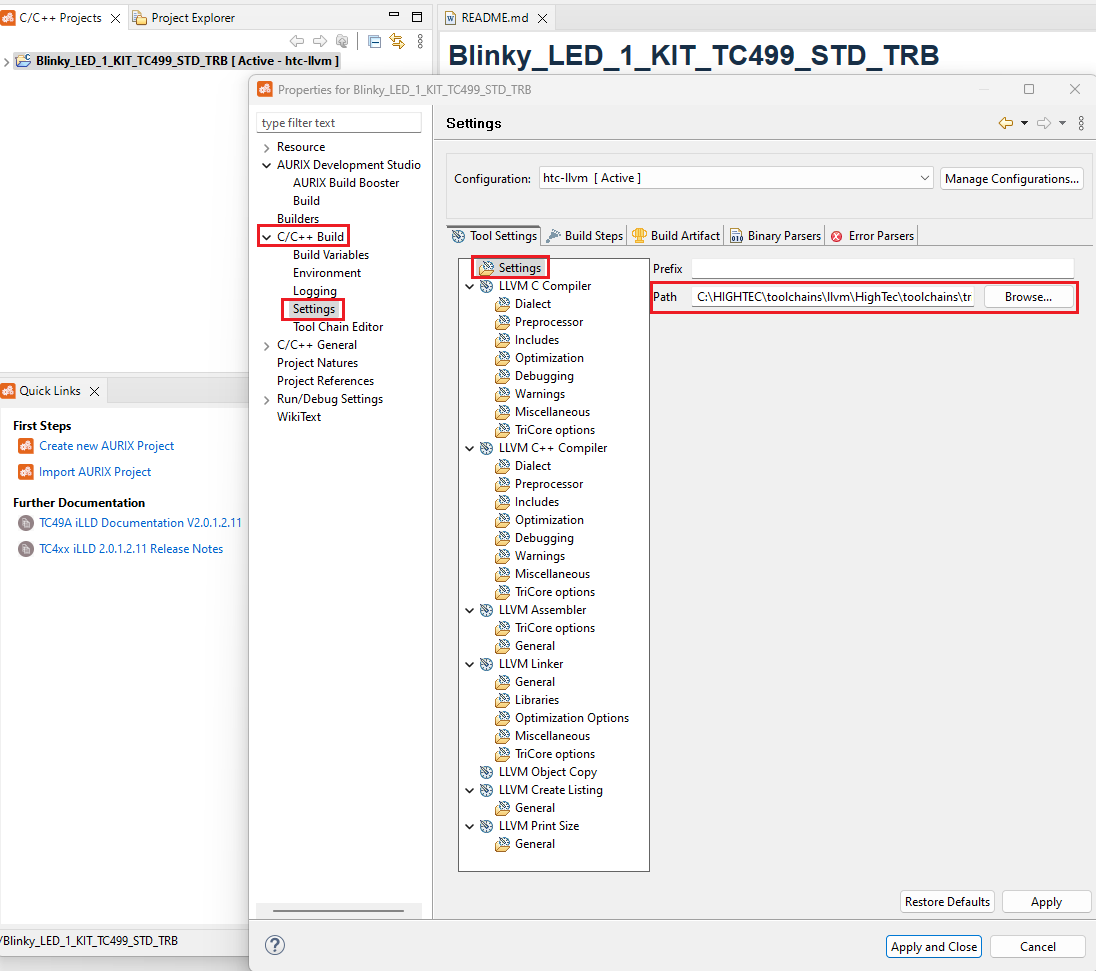
When the new toolchain is set, ADS executes the C/C++ Indexer. It needs to be finished before starting the build. Otherwise, there is a considerable risk of the build failing.
Clang driver options
The C/C++ compiler driver clang is a complete control program for a large part of the toolchain. It can
orchestrate the entire build of an executable with a single command-line invocation.
In ADS, the compiling and linking steps are done separately. For this reason, the following options must be used in both: LLVM C/C++ Compiler options and LLVM Linker options.
- Function sections:
-ffunction-sections -
Place each function in its own section.
Minimal settings
    CC_OPTIONS= -ffunction-sections -merrata=cpu141
    CPP_OPTIONS= -ffunction-sections -merrata=cpu141
    ASM_OPTIONS= $(CC_OPTIONS)
Newer ADS versions include -ffunction-sections, -fdata-sections, and -march=tc18 in the C/C\++ compiler options.
|
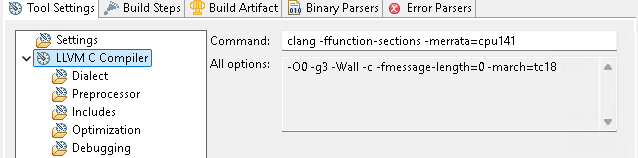
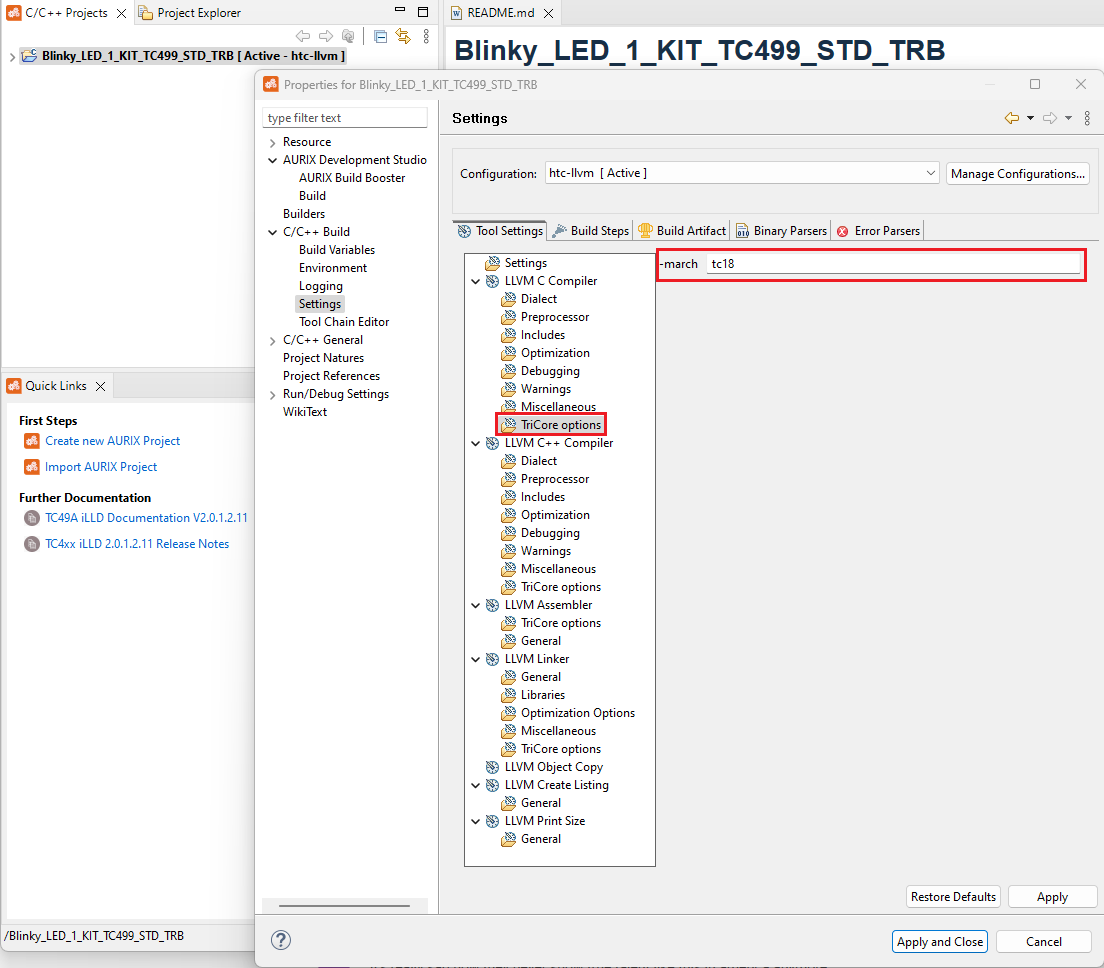
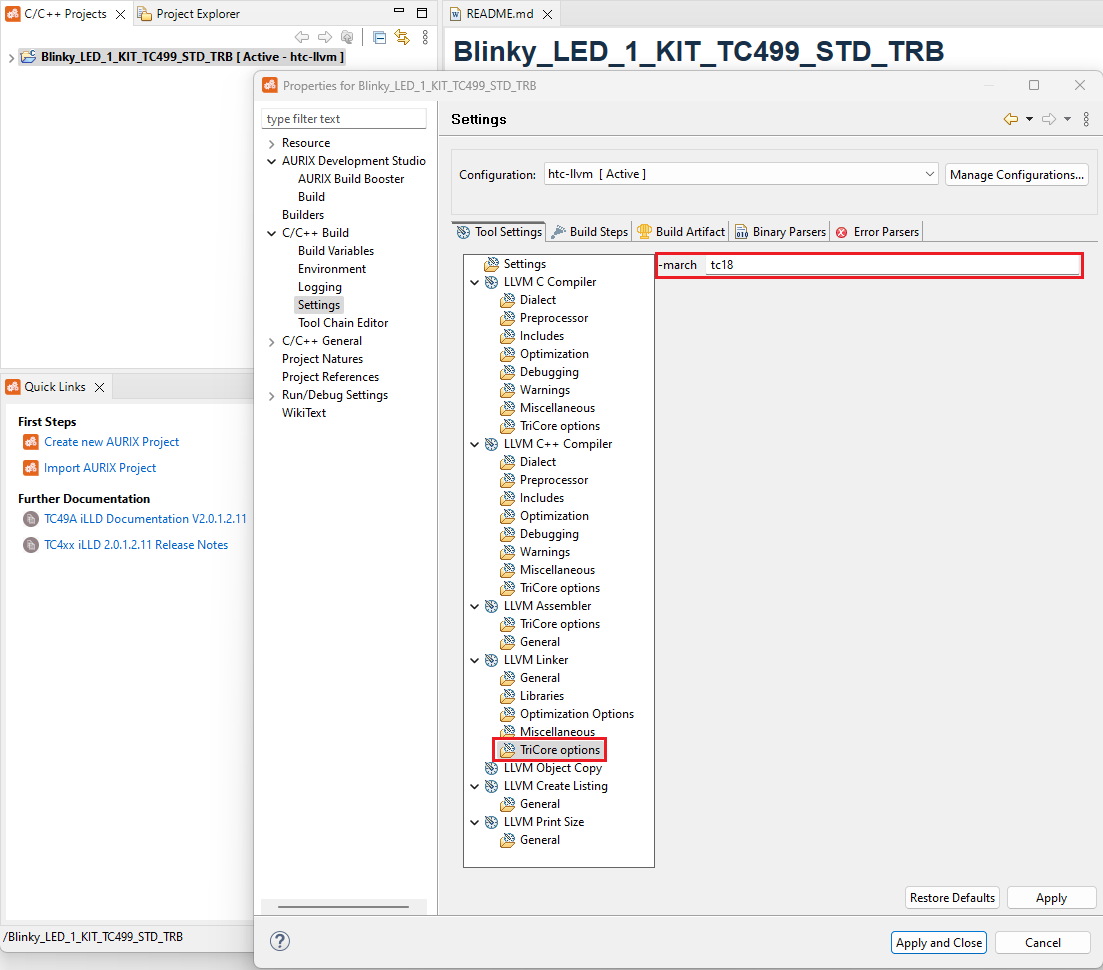
- Errata:
-merrata=<bug> -
Some derivatives contain silicon bugs, also known as errata. In such cases, the workaround has to be applied to avoid triggering them. This option also affects the selection of target libraries during the linking. Allowed values:
<bug> Description cpu141[CPU_TC.141] Instructions not implemented in TC49A derivative [1]
Please refer to the Errata chapter in [2] for more details.
For compilation, extend the Other flags field in LLVM Compiler → Miscellaneous, i.e.,
-merrata=cpu141.
For the linking, extend the Other flags field in LLVM Linker → Miscellaneous, i.e.,-merrata=cpu141.
- Floating point strategy:
mfloat-abi=<float-abi> -
Select the floating point handling strategy for code generation: software function calls or hardware
FPUinstructions. The <float-abi> keyword has the following pattern:
<float-strategy><double-strategy><size-of-double> , i.e.,hs64.
The letters represent the handling strategy forfloatanddoublefloating-point types. The number is the size of thedoubletype in bits. The possible combinations can be selected from the following table according to the-march=<arch><float-abi> floatstrategydoublestrategydoublesizeSupported architectures Default for ss32function calls
function calls
32
tc18hh32FPUinstructionsFPUinstructions32
tc161,tc162,tc18ss64function calls
function calls
64
tc18hs64FPUinstructionsfunction calls
64
tc161,tc162,tc18tc161,tc162hh64FPUinstructionsFPUinstructions64
tc18tc18For more details, please refer to the
Multilib variantschapter in [2].For compilation, extend the Other flags field in LLVM Compiler → Miscellaneous, i.e.,
-mfloat-abi=hh64.
For the linking, extend the Other flags field in LLVM Linker → Miscellaneous, i.e.,-mfloat-abi=hh64.
- Exceptions:
-f[no-]exceptions -
Enable or disable the support for C++ exception handling. This flag also controls which libraries are linked. By default, exceptions are enabled.
For compilation, extend the Other flags field in LLVM Compiler → Miscellaneous, i.e.,
-fno-exceptions.
For the linking, extend the Other flags field in LLVM Linker → Miscellaneous, i.e.,-fno-exceptions.
The exhaustive list of the compiler driver options can be found in the Compiler Driver chapter in [2].
Compiler-specific options
-
The Command is pre-set to
clangin LLVM C Compiler.- Optimizations:
-O<level>: -
The compiler accepts the following optimization options:
-O0,-O1,-O2,-O3,-Ofast,-Os,-Oz,-OgChoose from the offered options or set the Other optimization flags field in LLVM Compiler → Optimization. In the second case, there are two optimization options in the build command, and the compiler will use the last one in the sequence, i.e., in
clang -O0 -Ofast,-Ofastwill be used. - Include paths:
-
Right-click on the project and select Properties → Aurix Development Studio → Build check the box to auto-discover compiler include paths.
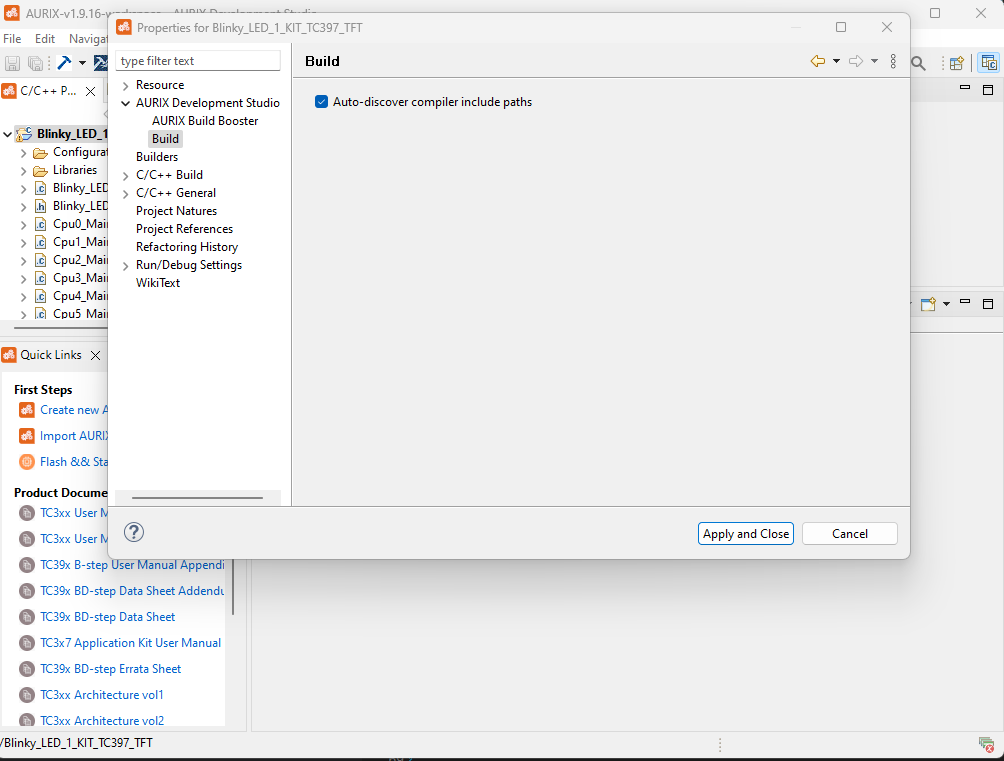 Fig. 16. Include paths
Note: The user might want to turn this feature off after the first build attempt. For more details see chapter Troubleshooting in the appendix.
- Optimizations:
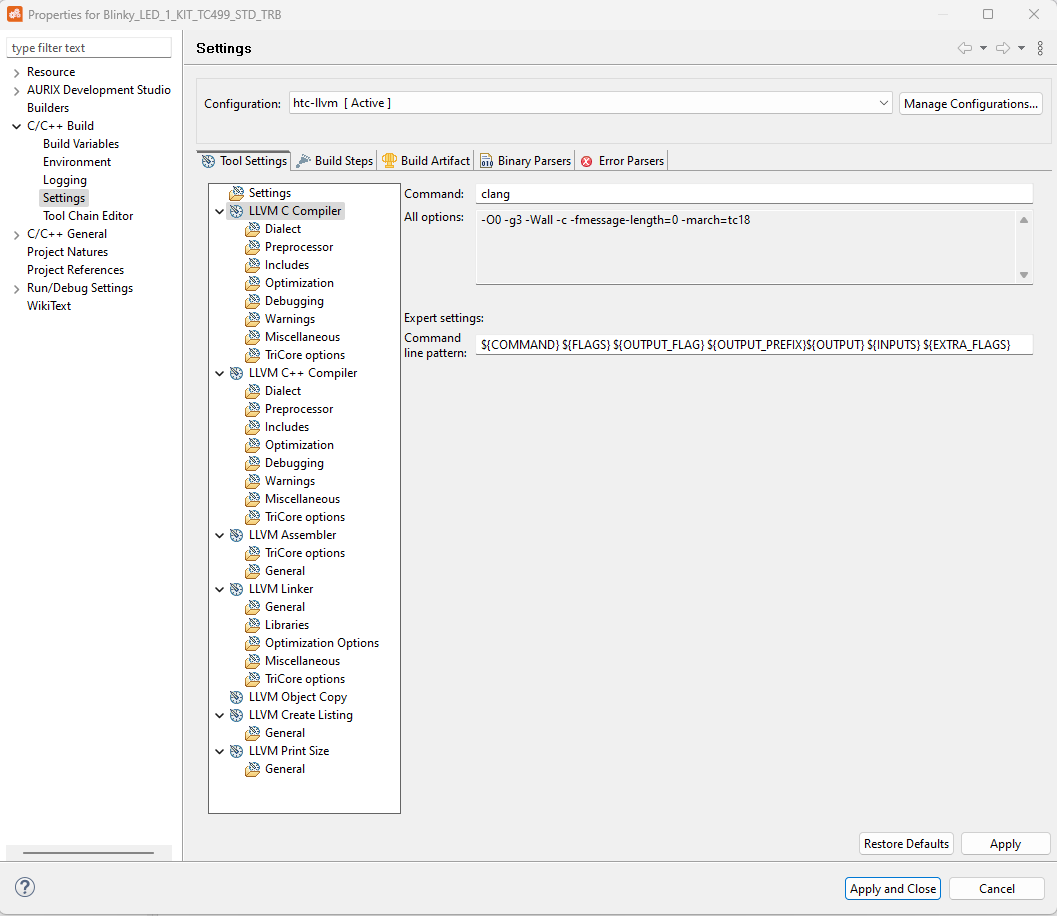
The exhaustive list of the compiler options can be found in the Compiler chapter of [2].
Linker-specific options
-
The Command is pre-set to
clangin LLVM Linker. -
Although clang understands and forwards most of the common linker options, some need to be passed directly to the linker. To pass an option to the linker, you should prefix the option with
-Xlinkeror-Wl,.
For example, option --gc-sections should be passed to the linker as -Xlinker˙ `--gc-sections or -Wl,--gc-sections.
LD_OPTIONS= -Wl,--gc-sections- Linker script:
-T<linker-script> -
We use the linker script containing the
Highteckeyword. The information on how to select and import it is described in chapter Linker script.Set the field Linker Script in LLVM Linker → General, i.e.,
../Lcf_Hightec_Tricore_Tc.lsl. - Libraries
-
- Internal libraries
-
When using the
clangcompiler driver, the library paths are chosen based on the-march,-merrata,-mfloat-abi, and-f[no-]exceptionsoptions. The libraries like C standard library, or C++ library, are automatically linked from these paths. Some functions from the C standard library reference the file IO functions. - External libraries
-
When linking external libraries, it is necessary to pass the library name with
-lprefix:-l<lib>as well as the library path with-Lprefix:-L<libpath>. To link, e.g., the"C:\tricore\libs\libbsp.a"library, the following parameters have to be passed to the linker:-lbspand-LC:\tricore\libs.Add options
-l<lib>and-L<libpath>in LLVM Linker → Libraries → Add to link an external library.
LIBS=-lsemihost -merrata=cpu141In case of TC49A without -merrata=cpu141 flag, the linker won’t find the correct folder. The correct is tc49a.
Incorrect:
    >>> referenced by tricore_exit.c.o:(_exit) in archive
    C:\HighTec\toolchains\tricore\v9.1.1\tricore\lib\tc18\hh64\except\libsemihost.a
Correct:
C:\HighTec\toolchains\tricore\v9.1.1\tricore\lib\tc49a\hh64\except\libsemihost.aAURIX Build Booster
-
Right-click on the project, then Properties → AURIX Development Studio → AURIX Build Booster → Libraries paths → Delete /Libraries/iLLD if present and click on Apply and close.
|
Remove |
-
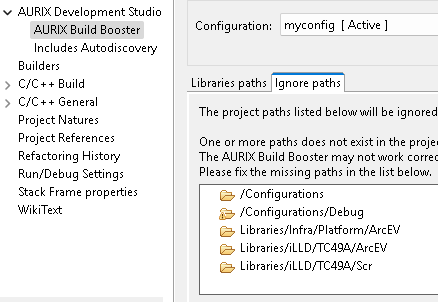
Right-click on the project, then Properties → AURIX Development Studio → AURIX Build Booster → Ignore paths → Add the following folders and click on Apply and close.
-
/Libraries/Infra/Platform/ArcEV
/Libraries/iLLD/TC49A/ArcEV
/Libraries/iLLD/TC49A/Scr
-
-
Right-click on the project, then Properties → C/C++ General → Paths and Symbols → Includes → GNU C, and ensure that the include paths do not contain any of the following directories and their subdirectories, click on Apply and close.
-
/Libraries/Infra/Platform/ArcEV
/Libraries/iLLD/TC49A/ArcEV
/Libraries/iLLD/TC49A/Scr
-
-
One by one, Right-click on the following directories, then Resource Configuration → Exclude from build → Select your build configuration and click OK (some may already have been disabled).
-
/Libraries/Infra/Platform/ArcEV
/Libraries/iLLD/TC49A/ArcEV
/Libraries/iLLD/TC49A/Scr
-
LLVM Object Copy options
-
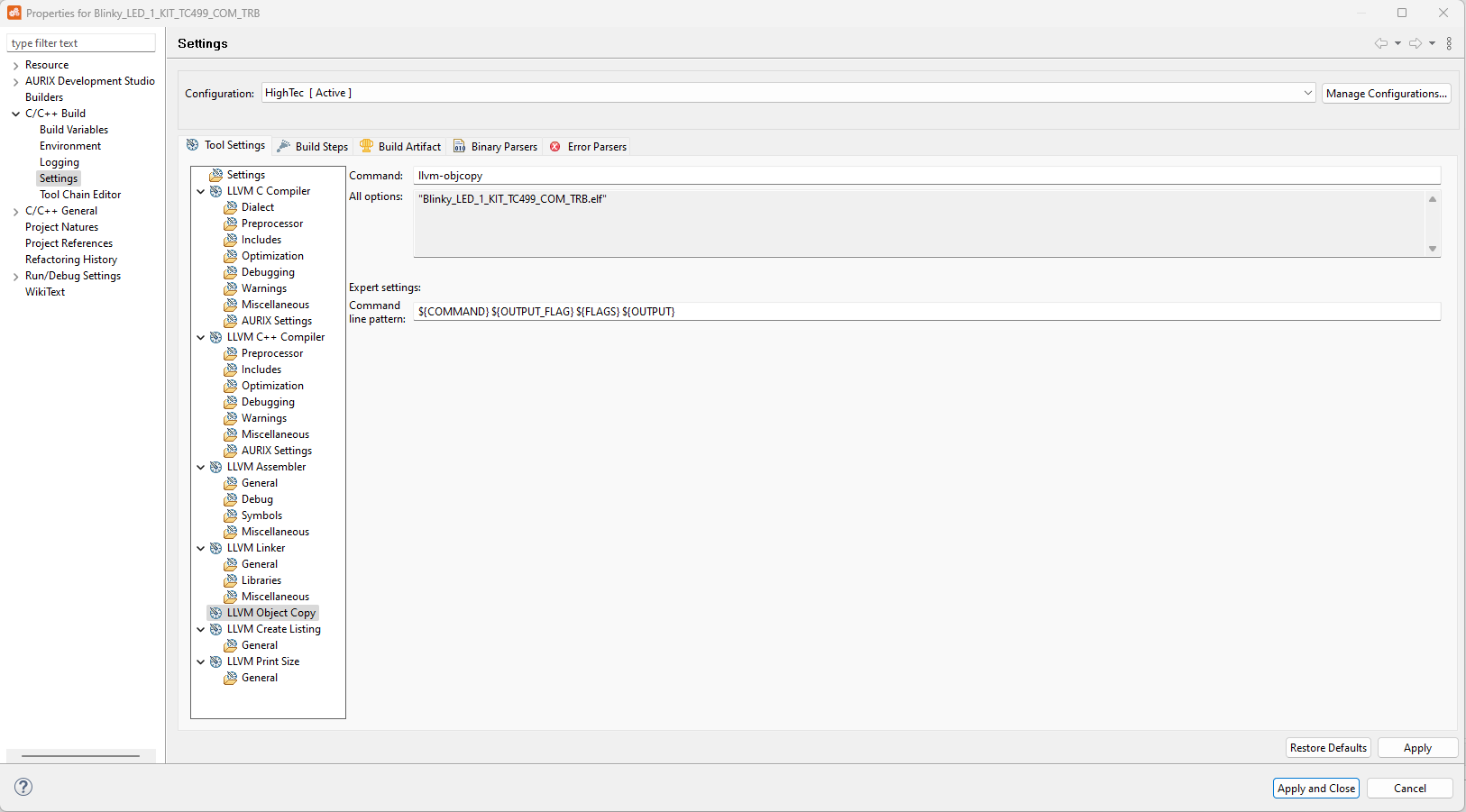
llvm-objcopyis pre-set.
An exhaustive list of Binutils options can be found in the Binutils chapter of [2].
LLVM Create Listing options
-
llvm-objdumpis pre-set.
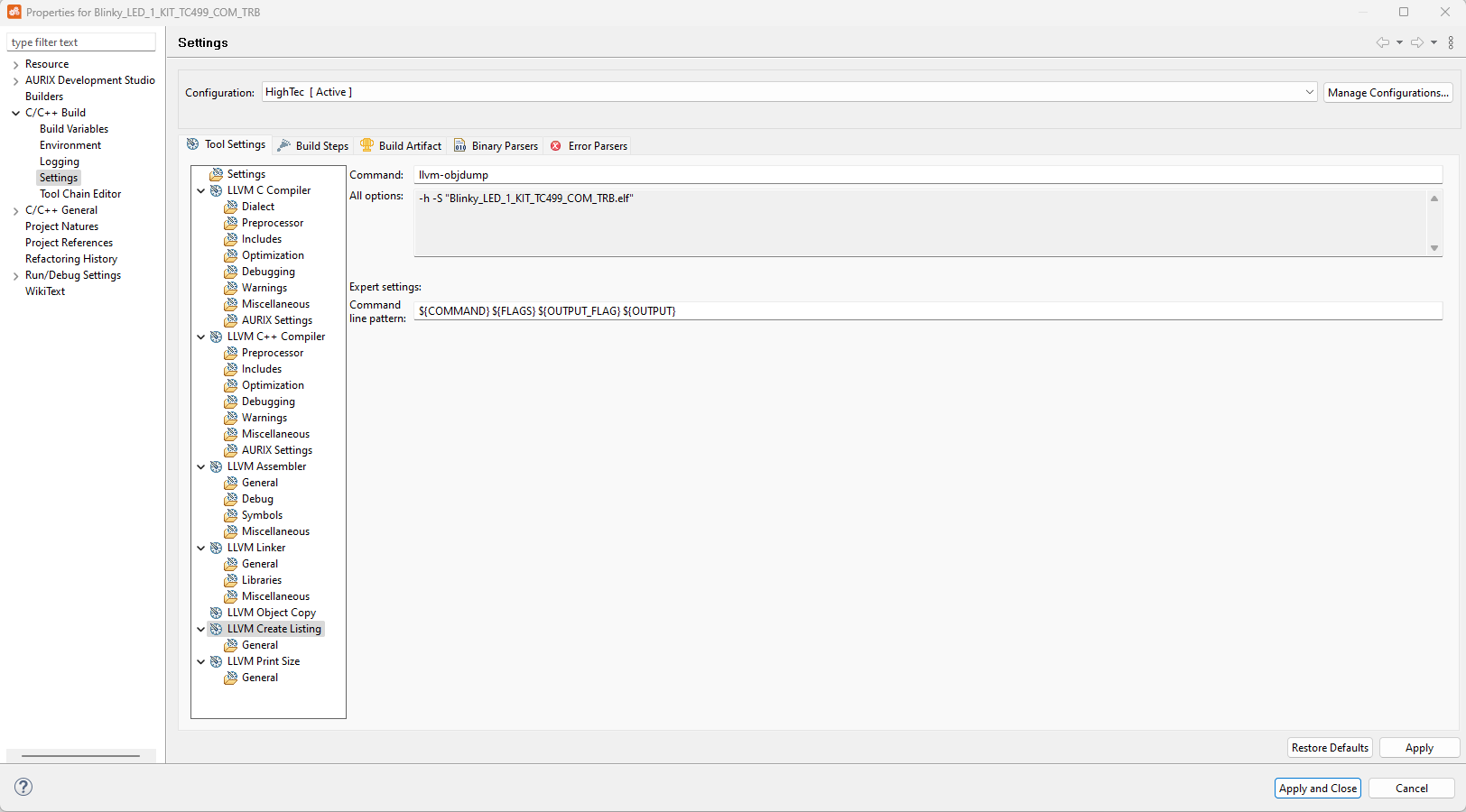
An exhaustive list of `Binutils˙ options can be found in the `Binutils˙ chapter of [2].
LLVM Print Size options
-
llvm-sizeis pre-set.
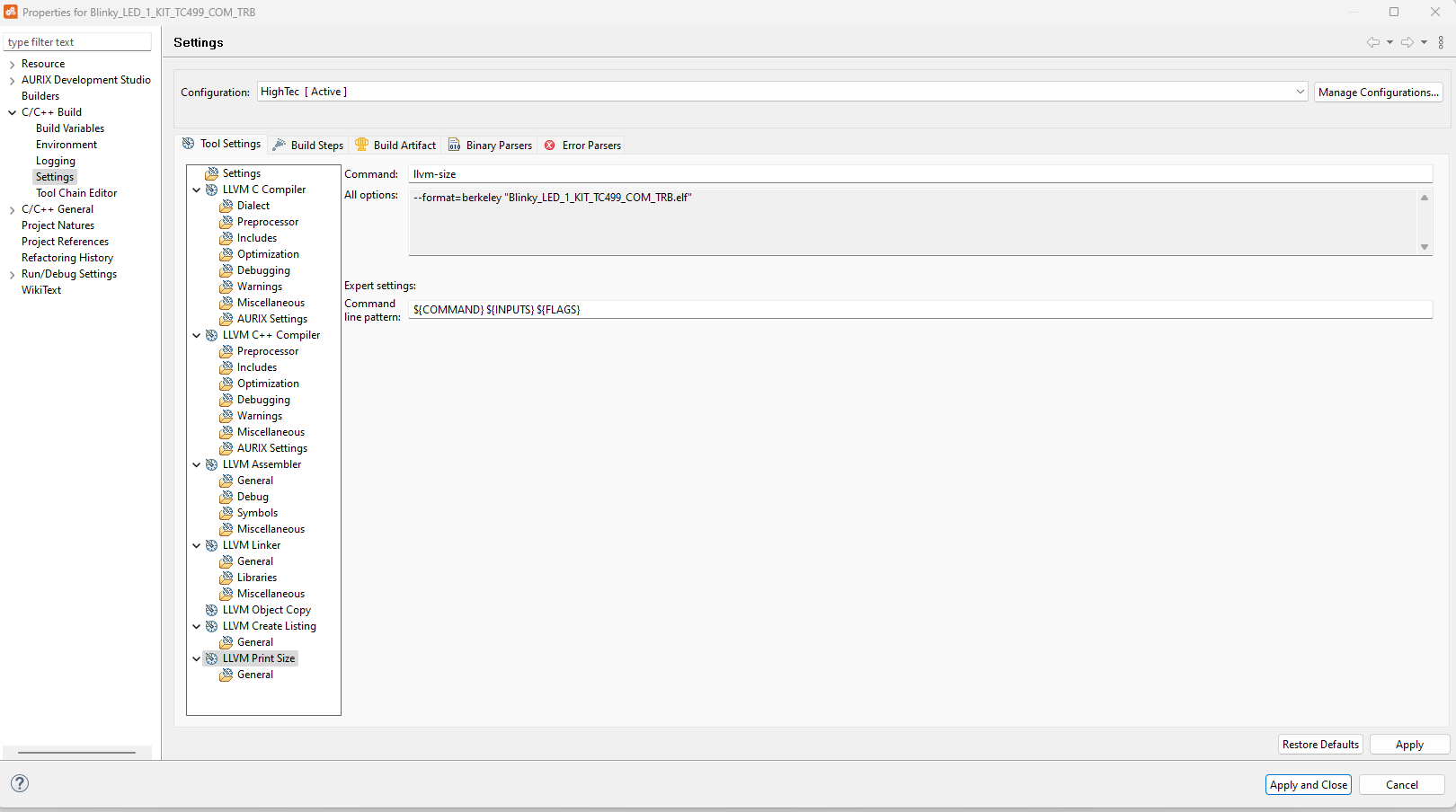
An exhaustive list of `Binutils˙ options can be found in the `Binutils˙ chapter of [2].
LLVM v9.0.0 and iLLD 2.0.1.3.5
As of version 2.0.1.3.5 the iLLD source code is not yet adopted to work with some changes introduced in LLVM toolchain v9.0.0. The following sections will describe the minor modifications needed to make examples work with versions 9.0.0 and up. These changes have been implemented in new versions of iLLD. If you are using v2.1.1 or never you don’t have to apply them.
Ifx_Ssw_Infra.c
The C++ initialization function needs to be modified. It is named void Ifx_Ssw_doCppInit(void) and can be found in /Libraries/Infra/Ssw/TC4xA/Tricore/Ifx_Ssw_Infra.c.
The user needs to change all references from process_init_array(void) and process_fini_array(void) to libc_init_array(void) and libc_fini_array(void) respectively.
The result should look like this:
#elif defined(__HIGHTEC__) && defined(__clang__)
    /* cpp initialization */
	extern unsigned int __FINI_ARRAY[];
	extern unsigned int __INIT_ARRAY[];
	extern void __libc_init_array(void);
	extern void __libc_fini_array(void);
	extern int atexit(void (*func)(void));
    atexit(__libc_fini_array);
    __libc_init_array();
#elif defined(__ghs__)
Lcf_Hightec_Tricore_Tc.lsl
The linker script should also be modified to accommodate the init and fini arrays. The .init_array sections should provide the init_array_start and init_array_end symbols and the padding required previously should be removed.
The same is true for the .fini_array section.
The final result should look like this:
    .init_array : ALIGN(8) {
    __INIT_ARRAY = .;
    PROVIDE_HIDDEN (__init_array_start = .);
    KEEP (*(.init_array*))
    PROVIDE_HIDDEN (__init_array_end = .);
    } > default_ram

    .fini_array : ALIGN(8) {
    __FINI_ARRAY = .;
    PROVIDE_HIDDEN (__fini_array_start = .);
    KEEP (*(.fini_array*))
    PROVIDE_HIDDEN (__fini_array_end = .);
} > default_ramBuild the project
Now, the project will use the HighTec LLVM compiler to build the application.
The final project content after a successful build is shown in the below figure.
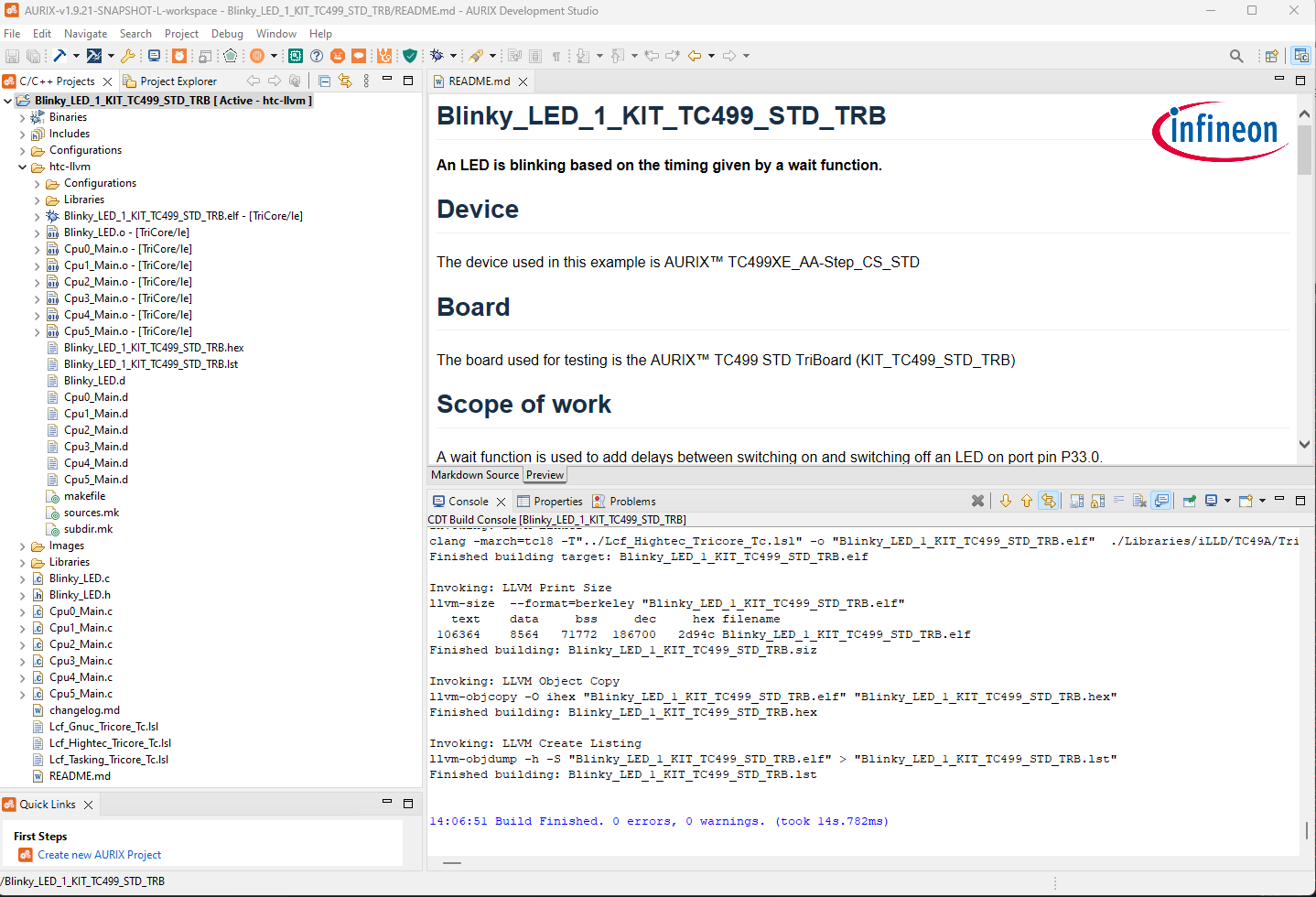
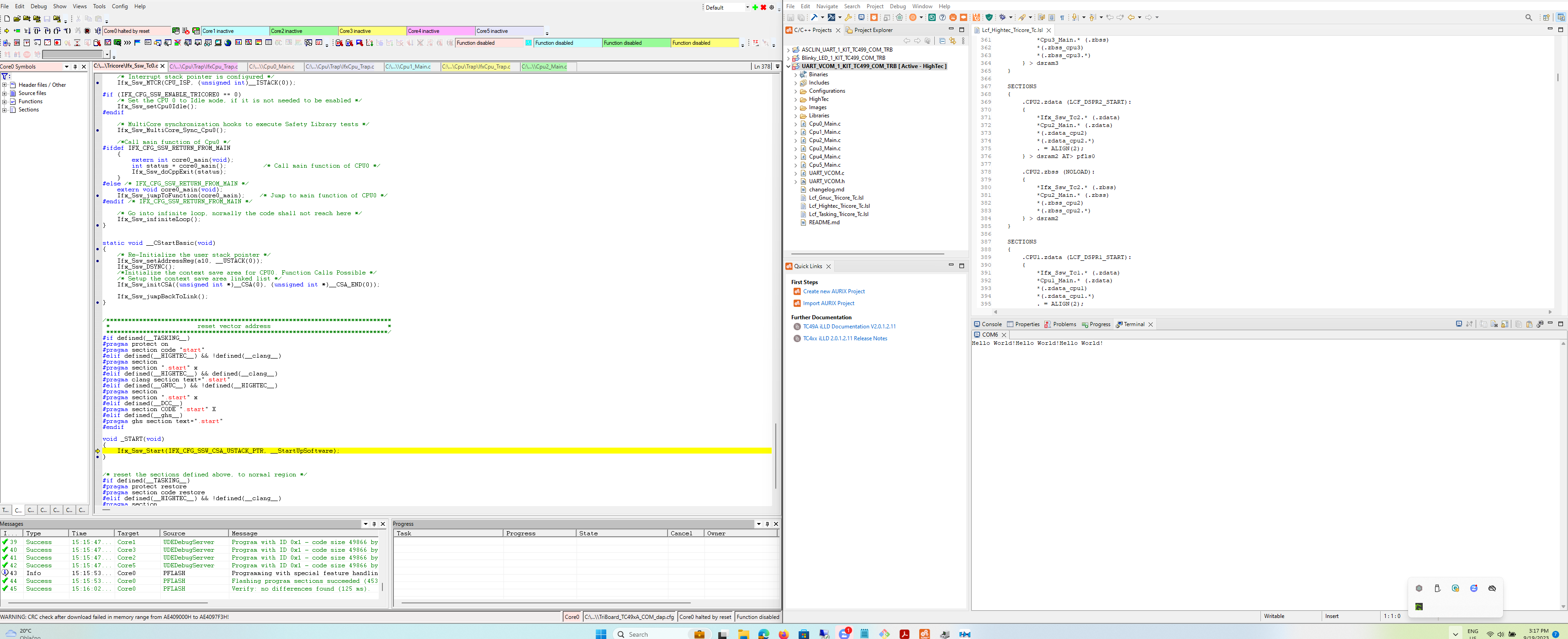
A complete project, run on a board.
Possible errors
.start section in the linker script
If the CPU startup code is being stripped or placed incorrectly during linking, update the KEEP directives in your linker script to include wildcard section matching:
| Original Directive | Updated Directive |
|---|---|
|
|
|
|
Apply this same wildcard pattern to all startup sections (.start_cpu0, .start_cpu1, .start_cpu2, etc.).
You can verify the section naming differences using this command:
llvm-objdump.exe -h .\your_executable_name.elf | grep "\.start"
llvm_objdump output
llvm_objdump outputMissing System Call Functions
If the linker reports missing system calls (such as read, write, close, lseek, lseek64, fstat, or isatty), you need to provide dummy implementations for these functions.
Add #include <stdio.h> and stub definitions to your Cpu0_Main.c file:
#if defined(__HIGHTEC__)
#include <stdio.h>

ssize_t read(int fd, void *buf, size_t count){
    (void) fd;
    (void) buf;
    (void) count;
    return 0;
}
ssize_t write(int __fd, const void *__buf, size_t __nbyte) {
    (void) __fd;
    (void) __buf;
    (void) __nbyte;
    return -1;
}
int close(int fd){ (void) fd; return 0;}
int isatty (int fd){ (void) fd; return 1;}
off_t lseek(int fd, off_t offset, int whence){
    (void) fd;
    (void) offset;
    (void) whence;
    return (off_t) -1;
}
_off64_t lseek64(int fd, _off64_t offset, int whence){
    return (_off64_t) lseek(fd, (off_t) offset, whence);
}
int fstat (int fd, int *sbuf){
    (void) fd;
    (void) sbuf;
    return -1;
}
#endif